
Webex Instructions for the General Public
Please note: The below instructions do not apply to attorneys, parties, and witnesses. These individuals will receive a direct link via email that allows participation in the remote hearing.
Join a Hearing:
- You can join a remote hearing from your computer or mobile device.
- On a desktop or laptop computer, Webex will allow you to view a hearing using a web browser. By doing so, you are not required to download the Webex application. Webex supports several web browsers, but best results may be obtained using Chrome or Firefox.
- Before you join a hearing on a mobile device, you must install the Webex Meetings app. If you do not have this app installed on your mobile device, you will be redirected to the installation page.
- All remote hearings are accessible from the links on the Deputy Commissioner Webex Hearing Links page. On the date and time of the scheduled hearing, click the caption for the hearing you want to join.
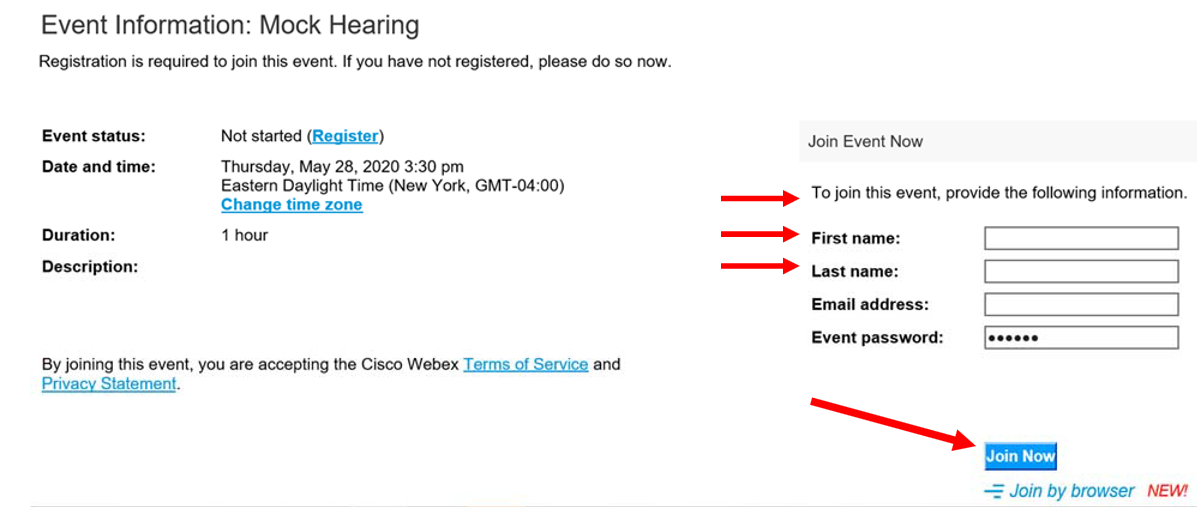
The link will take you directly to the hearing's landing page. Enter your name and email address, and then select "Join by browser." If the hearing has not started, this link may appear as dimmed.
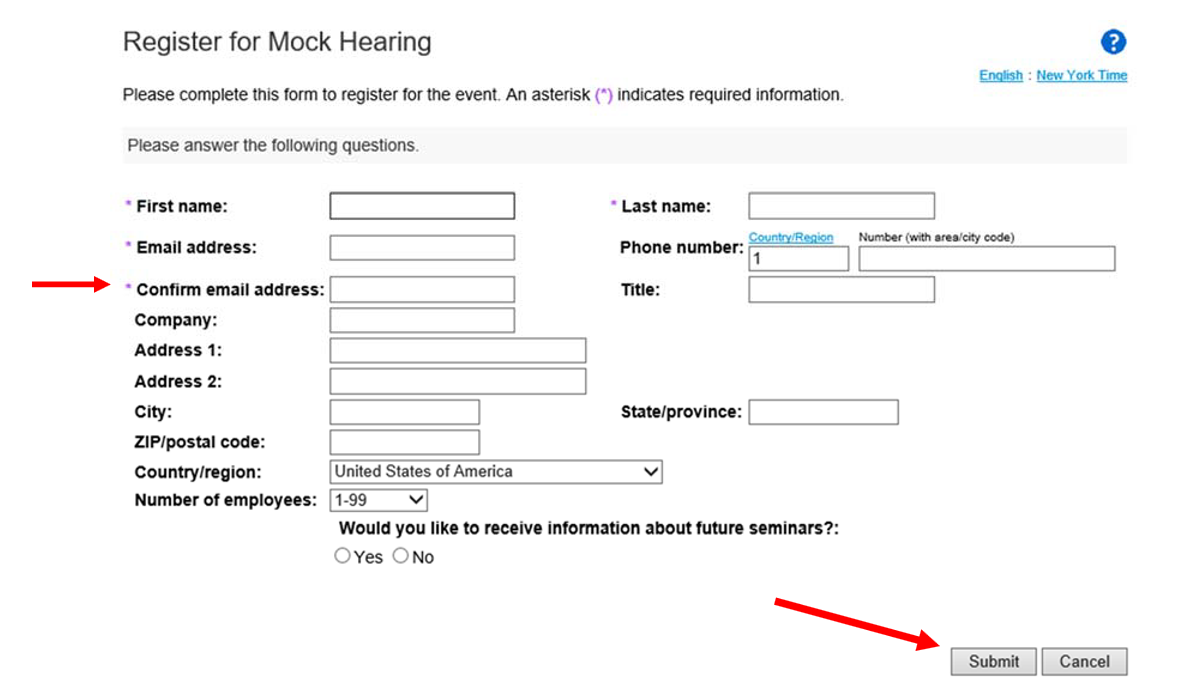
- If prompted, confirm your email address and click "Submit."
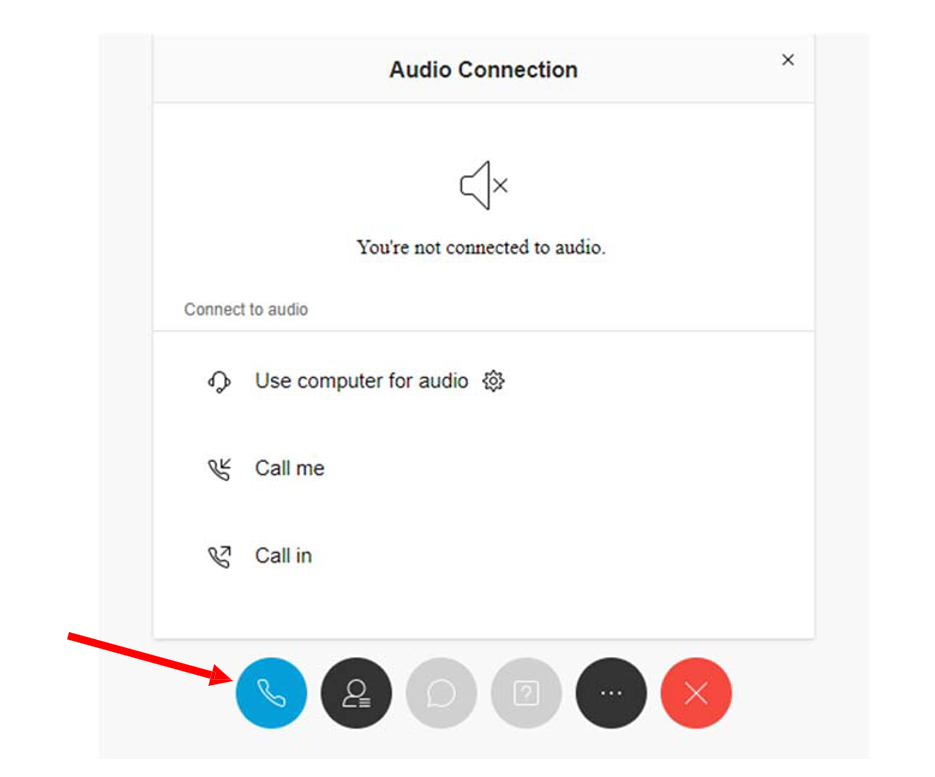
- Choose how you want to receive the hearing's audio. If you are unable to connect to the hearing audio through computer speakers, you can connect by telephone by selecting "call me" or "call in."
- You will now be able to observe the hearing. Only the presiding Deputy Commissioner, the parties, and their potential witnesses will be on camera and able to participate in the hearing.
On This Page Jump Links
Off